Setting up Microsoft Provider in the Edlink Dashboard
Pre-requisite: Onboard a district that uses a Microsoft Source to your Edlink Application.
- Select your application in the Edlink Dashboard.
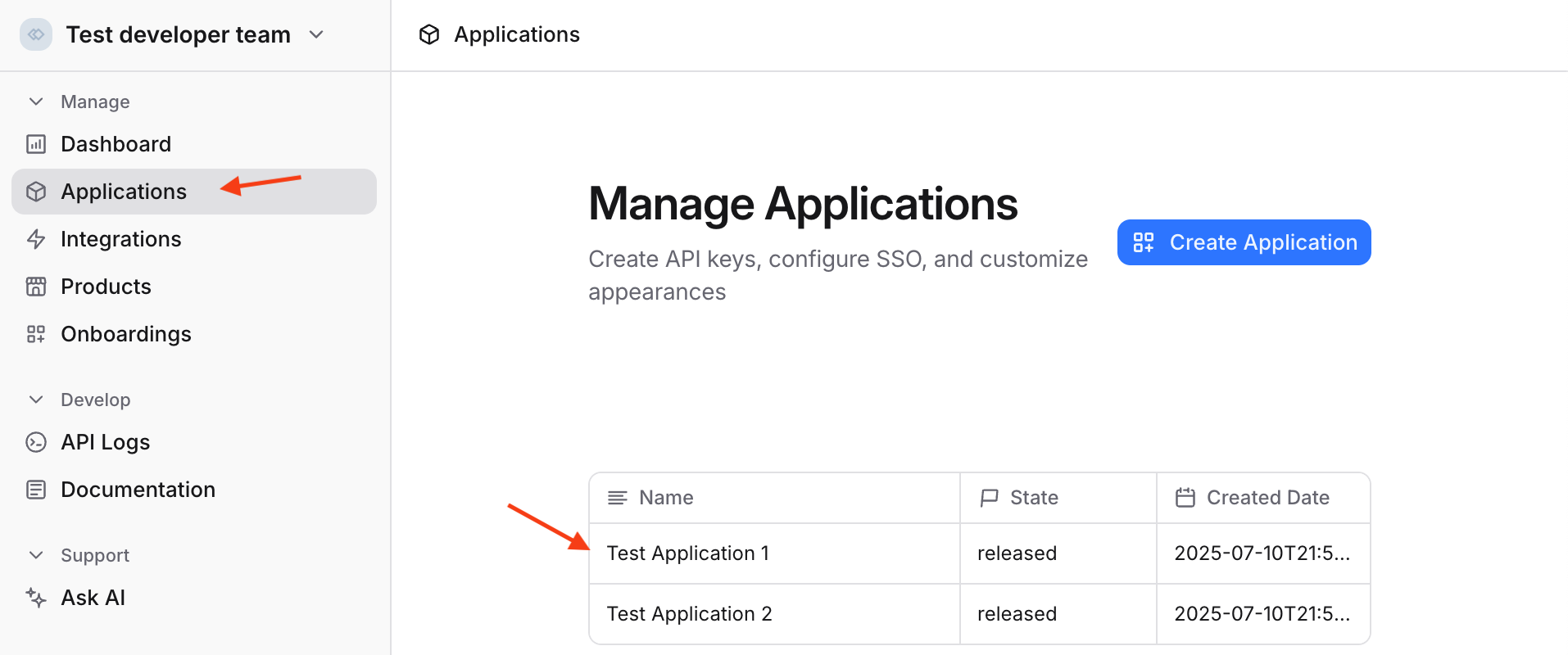
- Click on the "Providers" tab.
- Find the "Microsoft" card and click on "Configure".
- In the panel on the right side, paste the
Application (client) IDand the Client SecretValuefrom Microsoft's admin pages. - Add any other scopes to the list that your application will need.
- If your application wants to read or download files (like student submissions), you will need
Files.Read.All - If you application wants to upload files, you will need
Files.ReadWrite.Alland in some situations alsoFileStorageContainer.Selectedsee the Microsoft documentation for details
- If your application wants to read or download files (like student submissions), you will need
- Click "Save Configuration"
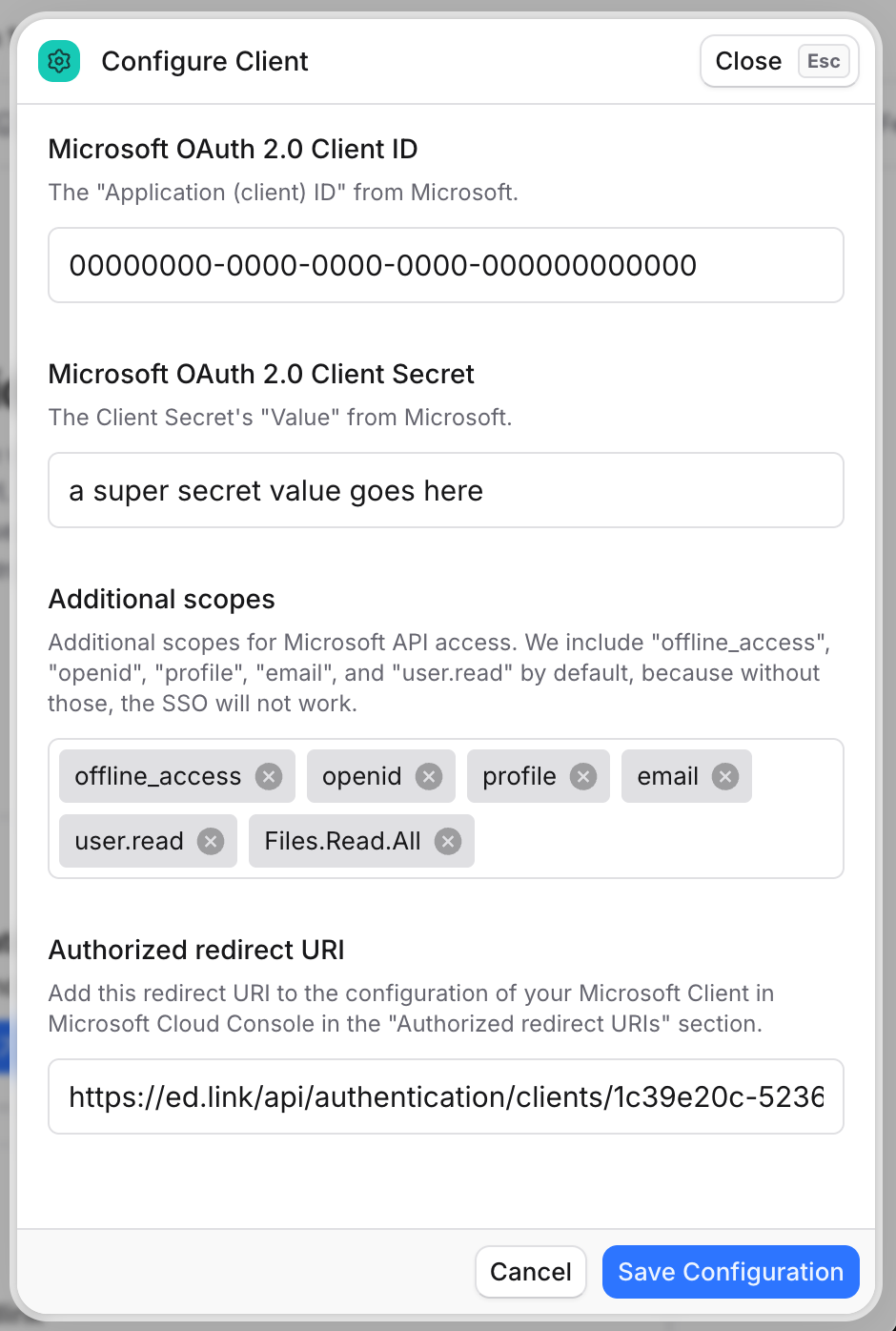
- Re-open the Microsoft card by clicking "Settings".
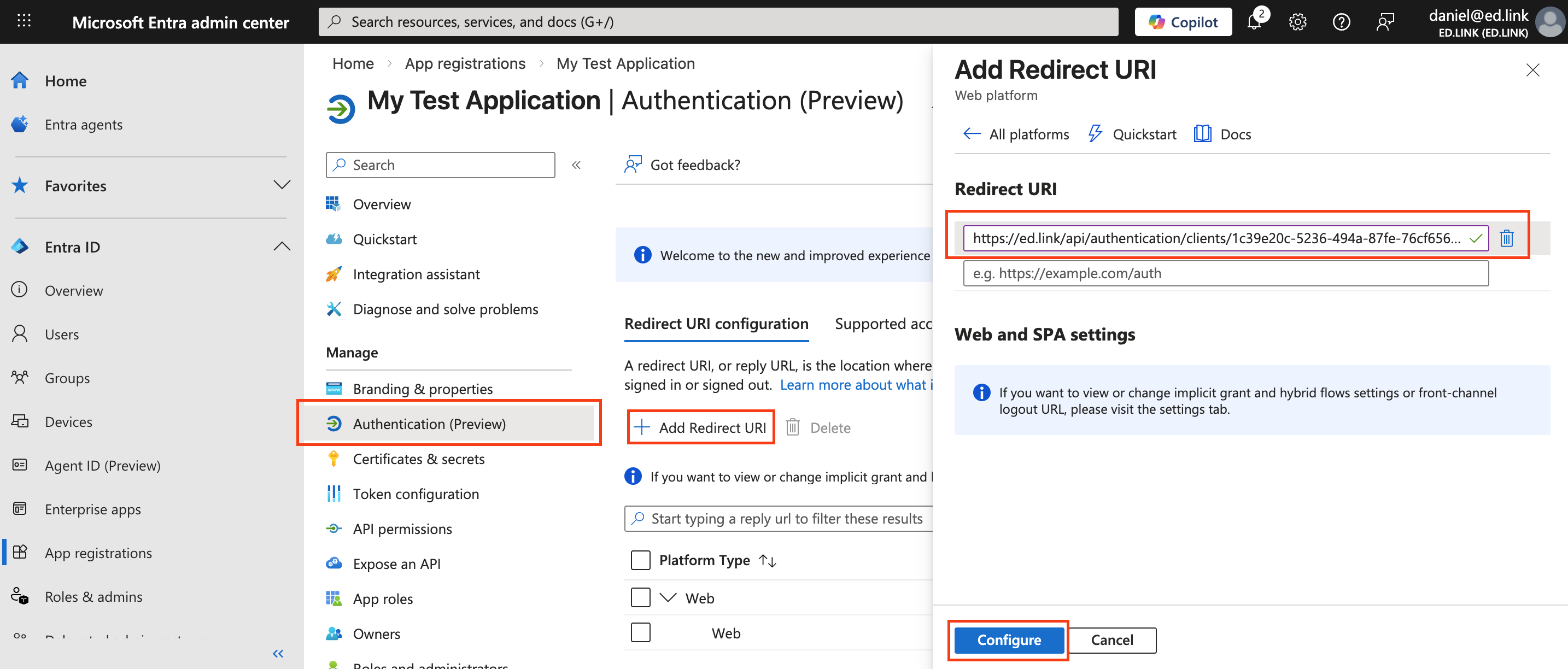
- Copy the now-populated "Authorized redirect URI" from Edlink, and paste it into the "Redirect URI configuration" sub-tab of the "Authentication (Preview)" tab on the Microsoft App registration page (in the Entra Admin Center). This step is required to "close the loop" so that Microsoft knows what redirect URI to expect from SSO attempts.