For Developers

LTI 1.3 Setup

This guide explains how to connect your learning application to Edlink through Schoology. The recommended approach is to install the app directly from the Schoology App Center, if it’s available there. If the app isn’t listed, you can set it up manually using either Edlink’s hybrid API + LTI 1.3 integration or an LTI Advantage–only configuration. Be sure to confirm with the learning app that an LTI-only source is supported before proceeding.

Choosing your Setup Method

To complete this process, you must be an admin in your Schoology organization.

If your learning application is available in the Schoology App Center, install it from there.
This is the recommended setup, as it automatically handles much of the configuration for you.

To check:

  1. In Schoology, click the icon with the three boxes in the top-right corner.
Step 1 screenshot
  1. Select App Center.
  2. Find the name of the learning application.

If the app appears in the App Center, follow the steps in the App Center Installation section.

Option 2 — Manual Setup in Schoology

If the app does not appear in the App Center, you can manually create and configure it as a custom LTI 1.3 app.

  • Hybrid (API + LTI 1.3): The most common and generally recommended method for manually connecting a learning application to Schoology.
  • LTI Advantage–only: For apps that connect solely through LTI 1.3.
    Confirm with the learning app that an LTI-only source is supported before proceeding.

App Center Installation

Step 1 Find the Application

  1. In Schoology, click the icon with the three boxes in the top-right corner.
  2. Select App Center.
  3. Find the name of the learning application and select it

Step 2

Select Install App → I Agree → Add to Organization.

Step 1 screenshot

Step 3

Find the LTI App you created from the list and select Configure then copy the Deployment ID

Step 3 screenshot

Step 4

From the Deployment ID you copied in the previous step, note that the first part of the value (before the dash) is the Client ID.

For example:

  • Deployment ID: 9345826612-1749208473
  • Client ID: 9345826612

The Deployment ID and Client ID above are sample values. Be sure to use the ones from your own Schoology setup in the dashboard.

In the Edlink dashboard:

  1. Paste the Client ID into the Client ID field.
  2. Paste the Deployment ID into the Deployment ID field.
  3. Select Update to save your changes.
Step 4 screenshot

Hybrid Method

This process should be completed once you have finished integrating with your learning application. To learn more about connecting your Schoology instance, check out the guide below.

Step 1

In Schoology, click the icon with the three boxes in the top right corner, then click App Center.

Step 1 screenshot

Step 2

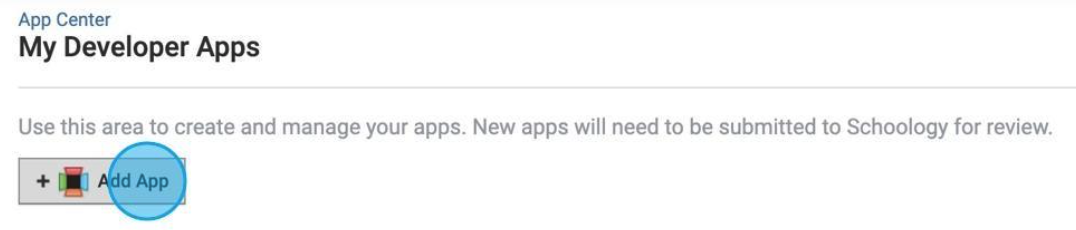
Click My Developer Apps → + Add App.

Step 2 screenshot

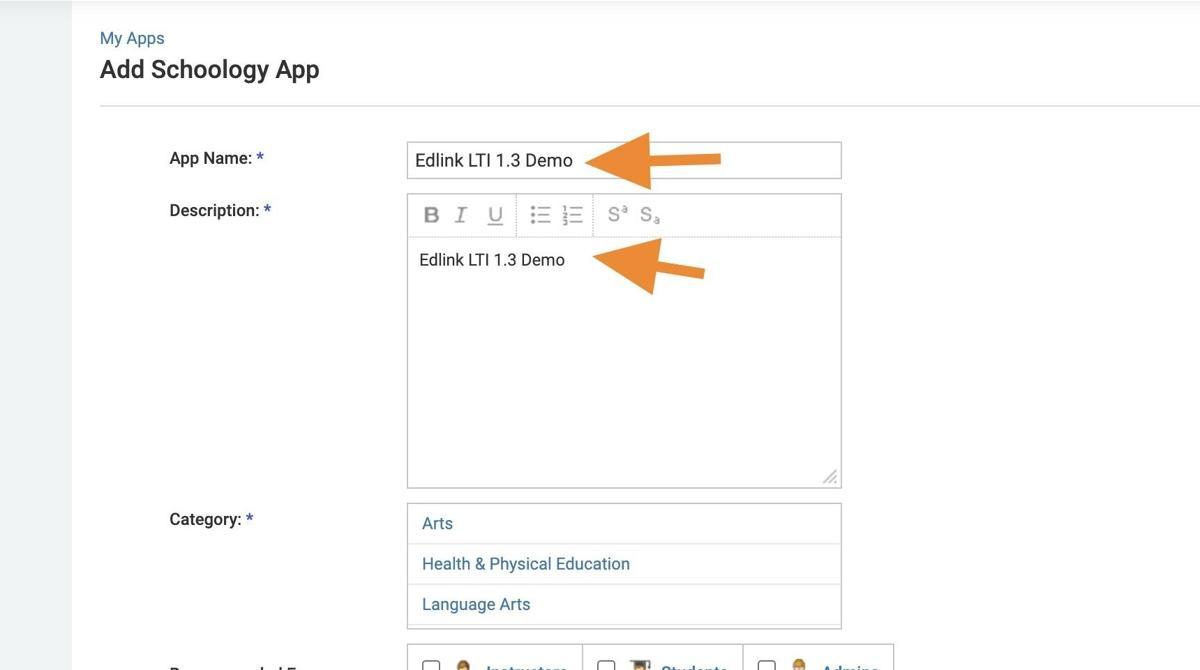
Step 3

Enter an app name and description.
Step 3 screenshot

Step 4

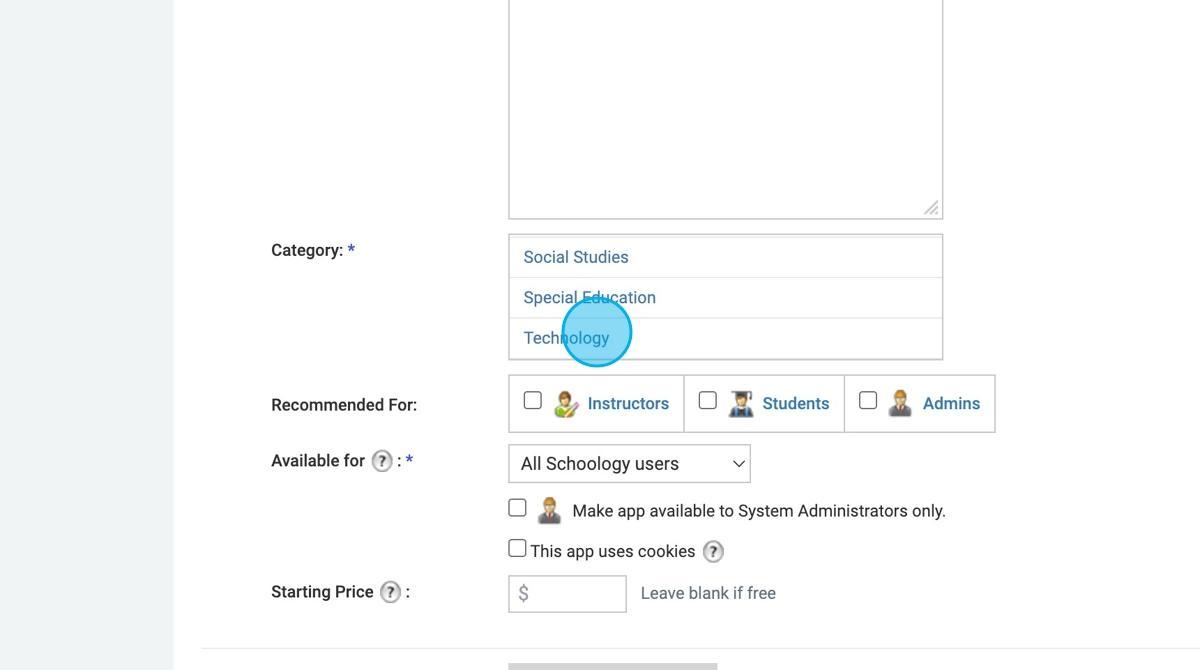
Select a category.

Step 4 screenshot

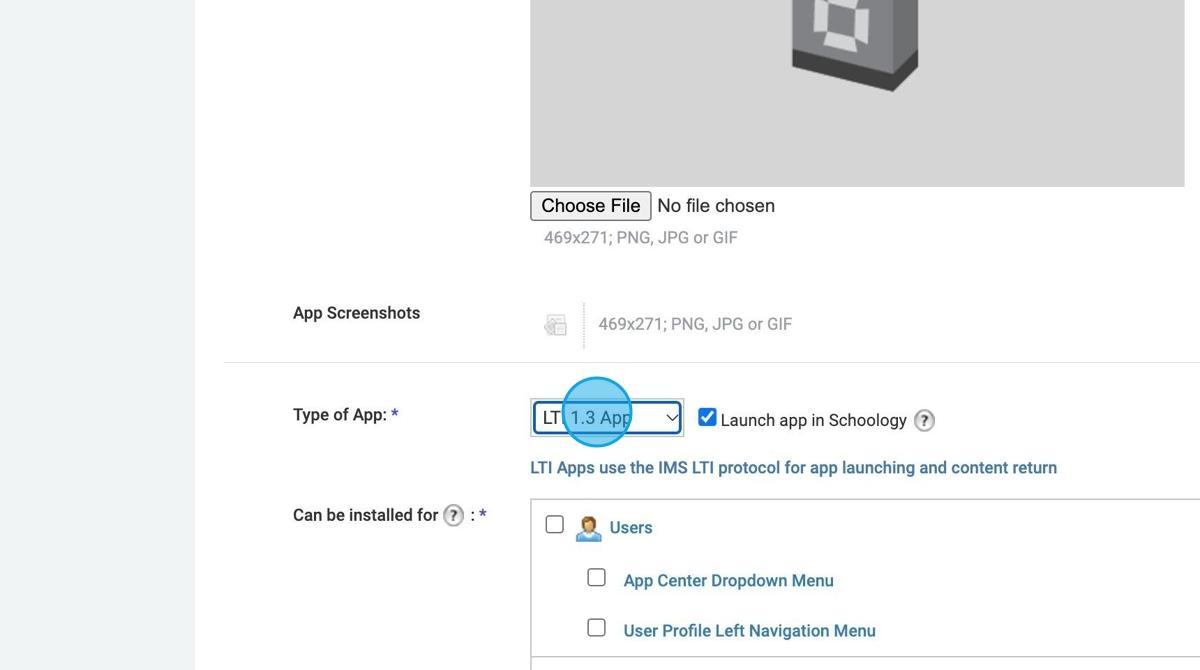
Step 5

Select LTI 1.3 App in the Type of App dropdown.
Step 5 screenshot

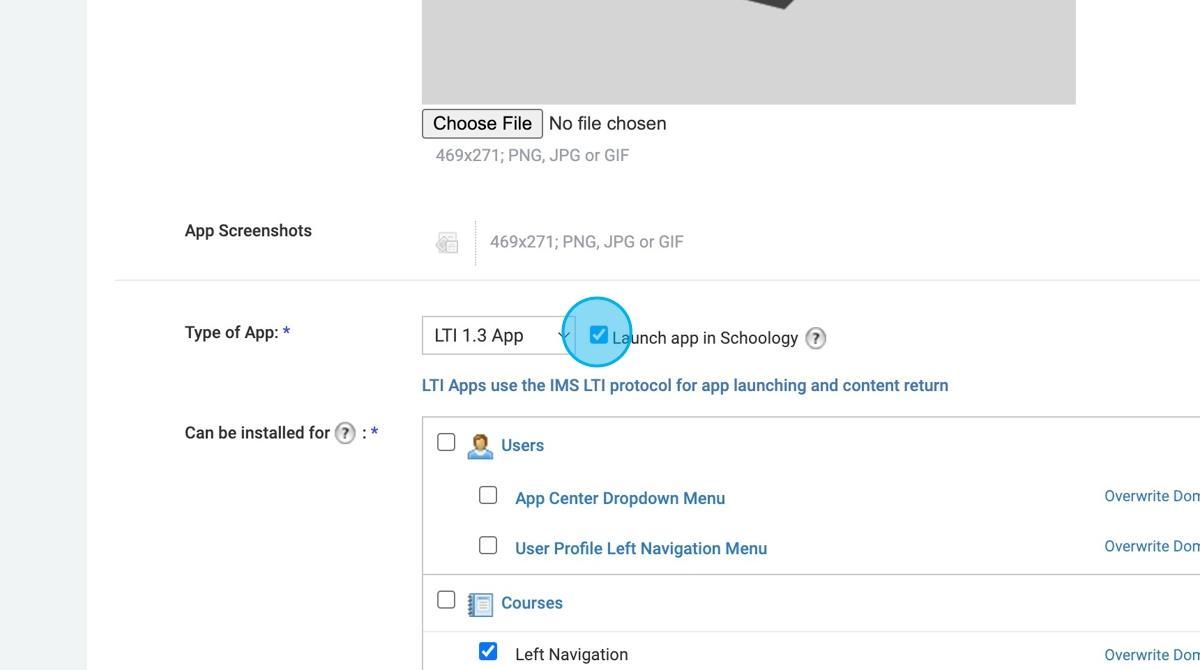
Step 6

Uncheck the Launch app in Schoology checkbox if you would like the app to open in a new window.
Step 6 screenshot

Step 7

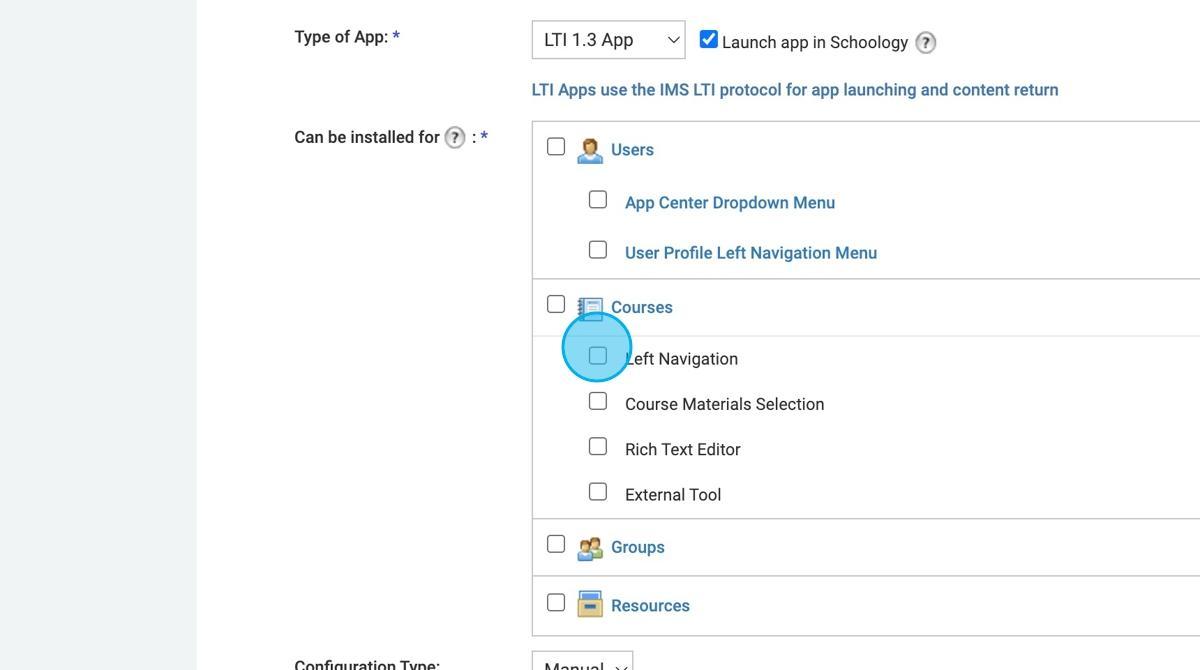
Check Left Navigation.

Step 7 screenshot

Step 8

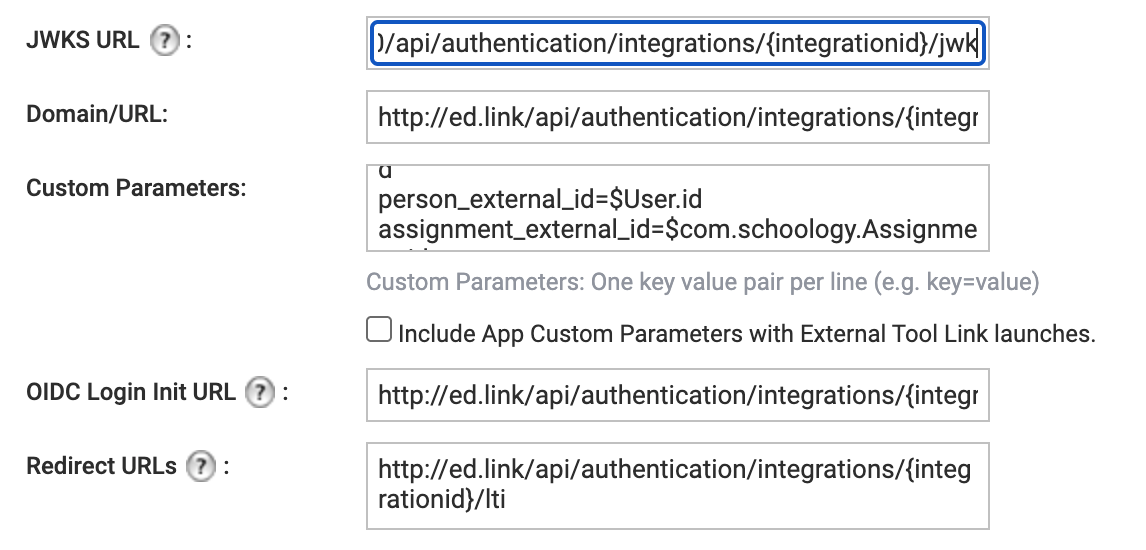
Fill out the following fields:

  • LTI Advantage Extensions:
    Enable deep linking if your learning application supports grades and assignments passing back to Schoology.
  • JWKS URL: This is found in the Edlink dashboard and labeled Keyset URL.
                <div class="callout warning">
                  <p>
                  The JWKS URL field is only visible and required when the Deep Linking option is enabled.
                  </p>
    
              </div>
    
  • Domain URL, OIDC Login Init URL, and Redirect URLs:
    These are found in the Edlink dashboard and labeled Configuration JSON.
    For help finding your Configuration JSON, and JWK url, check out this guide:
  • Custom Parameters:
    Enter the following values:
person_external_id=$User.id
assignment_external_id=$com.schoology.Assignment.id
Step 8 screenshot

Step 9

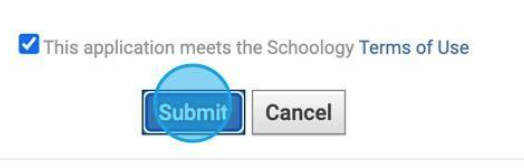
Check the box labeled This application meets the Schoology Terms of Use, then click Submit.
Step 9 screenshot

Step 10

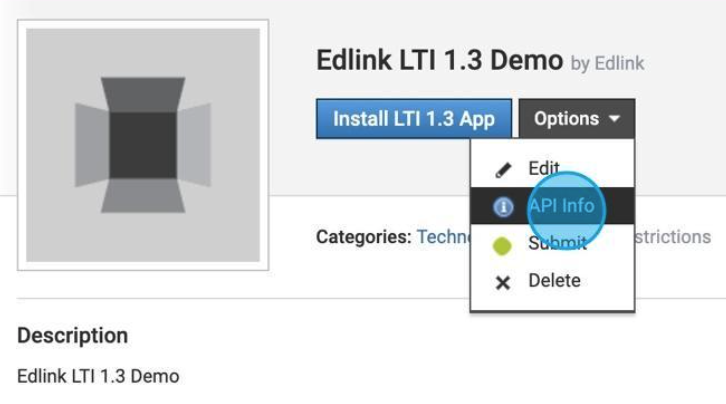
Click Options → API Info.

Step 10 screenshot

Step 11

Copy the Client ID and paste it into the Client ID field within the Edlink dashboard, then click Update.

Step 11 screenshot

Step 12

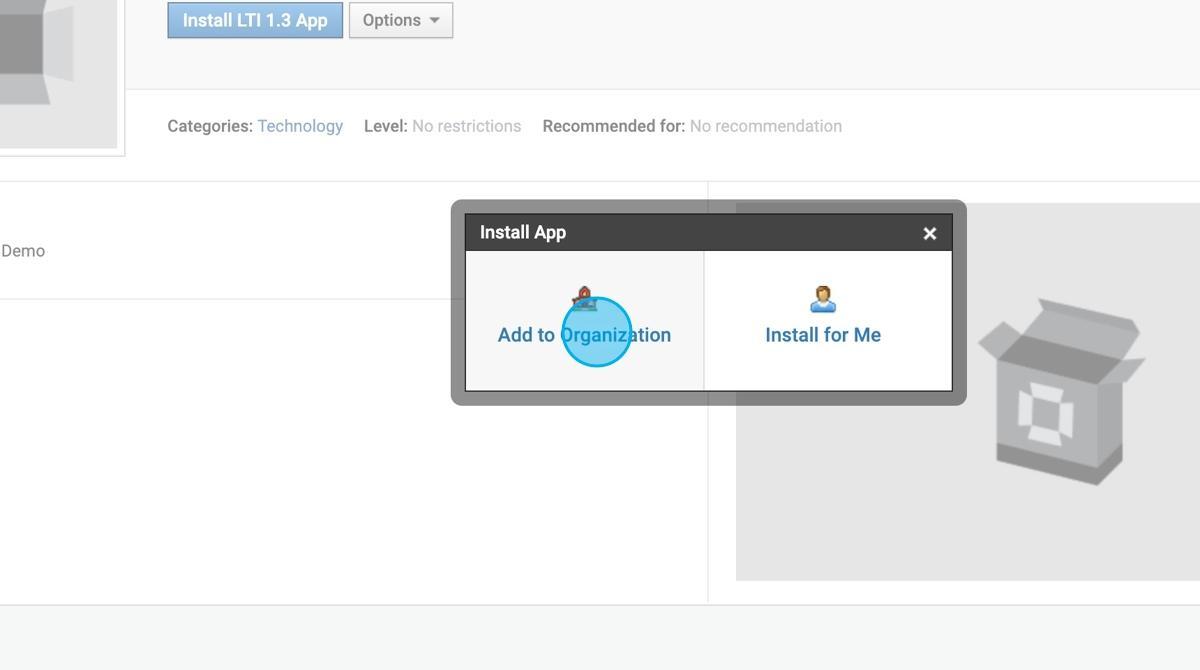
Click Install LTI 1.3 App → I agree → Add to Organization.
Step 12 screenshot

Step 13

Find the LTI App you created from the Organization Apps list and select Configure then copy the Deployment ID

Step 13 screenshot

Step 14

Paste the deployment ID in the Edlink dashboard under the Deployment ID field, and select Update.

Step 14 screenshot

Step 15

Select Cancel in Schoology, then Select Install/Remove, then click Submit

Step 15 screenshot

LTI Advantage Only

Step 1

In Schoology, click the icon with the three boxes in the top right corner, then click App Center.

Step 1 screenshot

Step 2

Click My Developer Apps → + Add App.

Step 2 screenshot

Step 3

Enter an app name and description.

Step 3 screenshot

Step 4

Select a category.

Step 4 screenshot

Step 5

Select LTI 1.3 App in the Type of App dropdown.

Step 5 screenshot

Step 6

Uncheck the Launch app in Schoology checkbox if you would like the app to open in a new window.

Step 6 screenshot

Step 7

Check Left Navigation.

Step 7 screenshot

Step 8

Next, you’ll switch over to the Edlink onboarding flow to get the URLs needed to continue your Schoology setup.

  1. Click the integration link provided by your learning application to open the Edlink onboarding flow.
  2. Create an Edlink account if you don’t already have one.

    If you’ve connected an app to Edlink before, log in with your existing account.

  3. Go to the SSO tab and select LTI Advantage from the list of available data sources.
  4. Choose your preferred data storage region.
  5. Select Schoology from the list of available LMSs.
LTI Advantage Integration Page
  1. Enter Your Schoology URL in the Schoology URL field
LTI Advantage Integration Page
  1. Copy the LTI Configuration JSON Value and the Keyset URL Value. You will need these values in the next step, then select Mark as Complete.
LTI Advantage Integration Page

Step 9

Back in Schoology, fill out the following fields:

  • LTI Advantage Extensions:
    Enable Deep Linking if your learning application supports grades and assignments passing back to Schoology.
  • Names and Roles Services: Enable this option. (Required to prevent errors in the Edlink onboarding flow, but not necessary for LTI functionality.)
  • JWKS URL:
    Enter the Keyset URL value you copied in the previous step.
        <div class="callout warning">
          <p>
          The JWKS URL field only appears and is required when the Deep Linking option is enabled.
          </p>
        </div>
    
  • Domain URL:
    Use the Domain URL from the previous step.
  • OIDC Login Init URL and Redirect URLs:
    Use the URLs from the previous step, but append /launch to the end.
    For example:
    https://ed.link/api/authentication/lti/{integrationID} → https://ed.link/api/authentication/lti/{integrationID}/launch
  • Custom Parameters:
    Enter the following values:
person_external_id=$User.id
assignment_external_id=$com.schoology.Assignment.id
Step 9 screenshot

Step 10

Check the box labeled This application meets the Schoology Terms of Use, then click Submit.

Step 10 screenshot

Step 11

Click Options → API Info.

Step 11 screenshot

Step 12

Copy the Client ID and paste it into the Client ID field within the Edlink onboarding flow from step 8.

Step 13

Click Install LTI 1.3 App → I agree → Add to Organization.

Step 13 screenshot

Step 14

Find the LTI App you created from the Organization Apps list and select Configure then copy the Deployment ID

Step 14 screenshot

Step 15

Paste the Deployment ID into the Deployment ID field within the Edlink onboarding flow from step 8, then click Validate Configuration at the bottom of the page.

Step 15 screenshot

Step 16

Select Cancel in Schoology, then Select Install/Remove, then click Submit

Step 16 screenshot

Well Done!

Great job — your new LTI learning application is now installed in Schoology!

Any Questions?

If you have any questions or run into any issues, please contact our support team. We'll respond within 24 business hours.