
You must be a RapidIdentity Administrator to complete the integration process.
RapidIdentity SSO is used for single sign-on. It will not sync people into an integration, so add it to an integration you already have.
Step 1: Attach RapidIdentity SSO to an Existing Integration
- In the Edlink dashboard, open the integration you want people to sign in to.
- Select
SSO. - Select
Attach an SSO Provider. - Choose your preferred data storage region.
- Select RapidIdentity SSO.
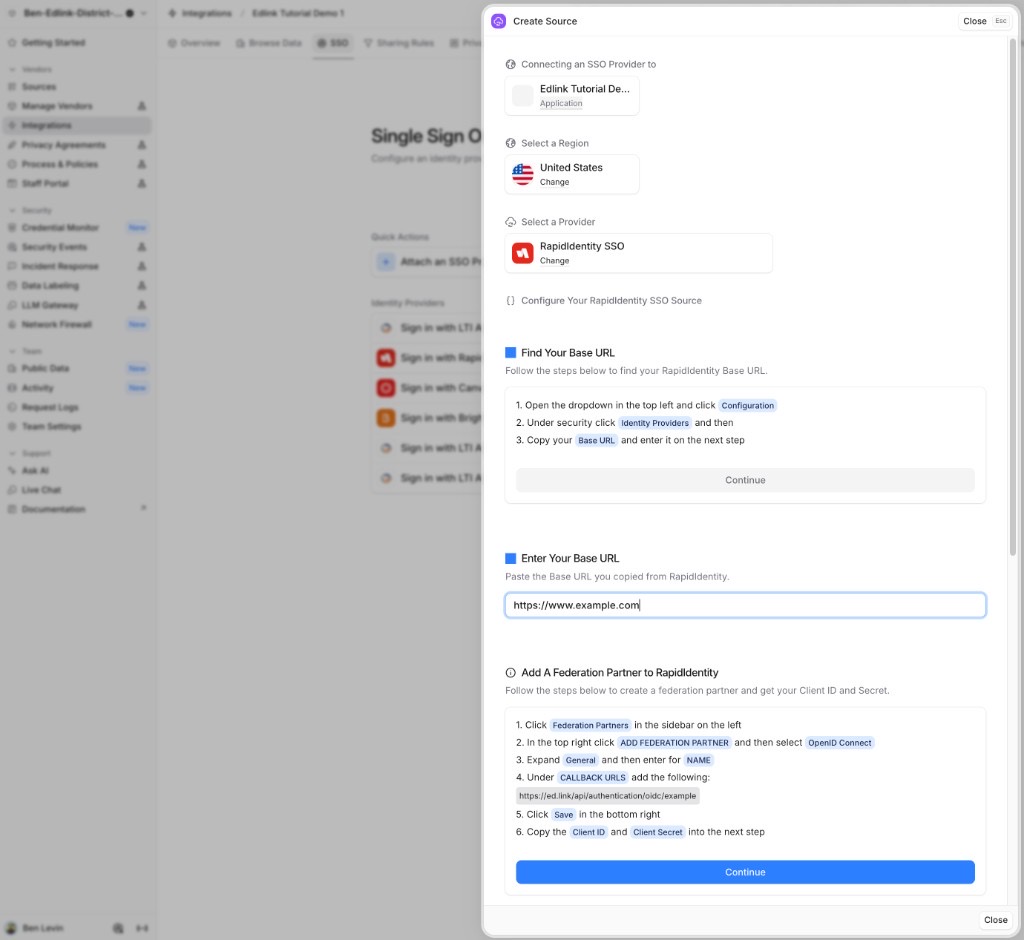
Step 2: Find Your Base URL
- In RapidIdentity, open the dropdown in the top left and select
Configuration. - Under security, select
Identity Providers. - Copy your
Base URLand paste it into Edlink.
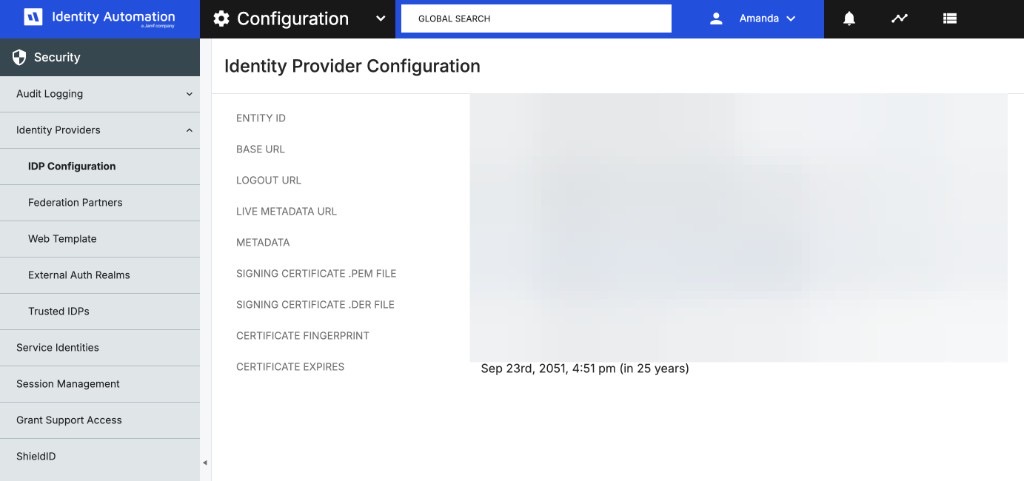
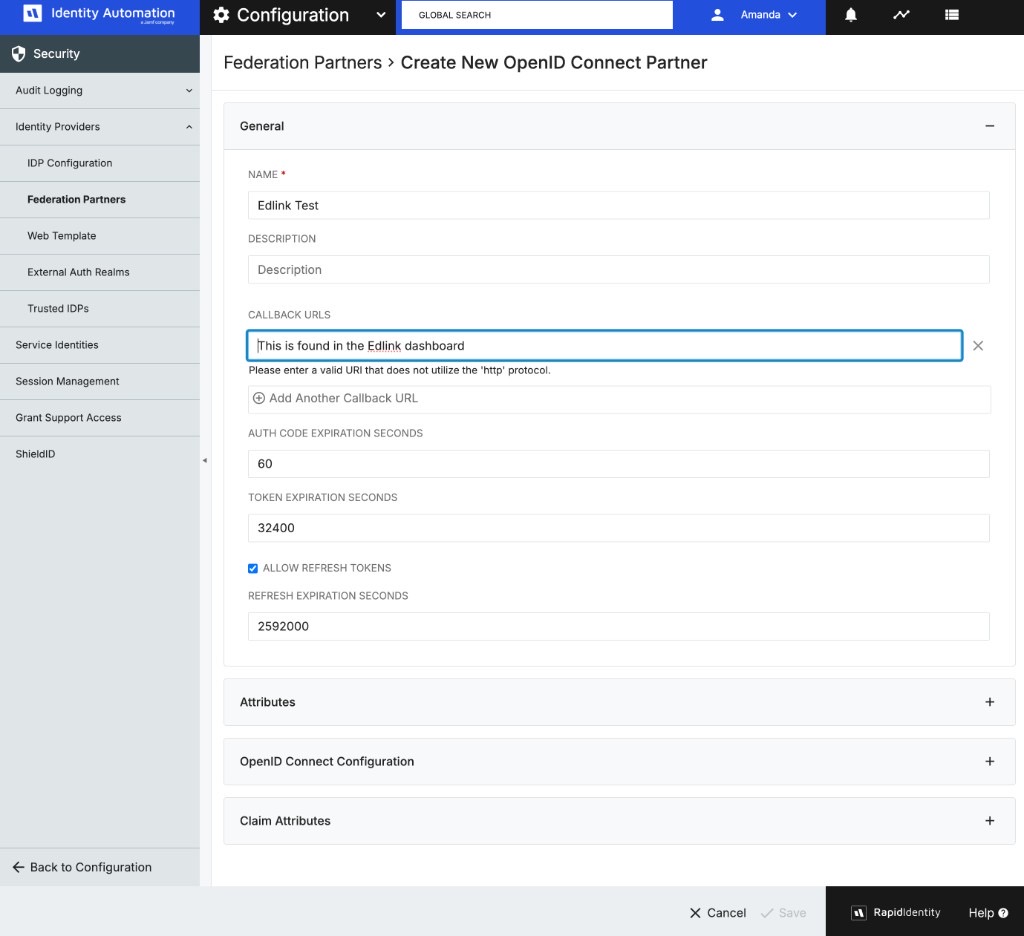
Step 3: Add a Federation Partner
- Select
Federation Partnersin the sidebar on the left. - In the top right, select
ADD FEDERATION PARTNER, then selectOpenID Connect. - Expand
Generaland enter the application name forNAME. - Under
CALLBACK URLS, add the callback URL shown in Edlink. - Select
Savein the bottom right. - Copy the
Client IDandClient Secretinto Edlink.
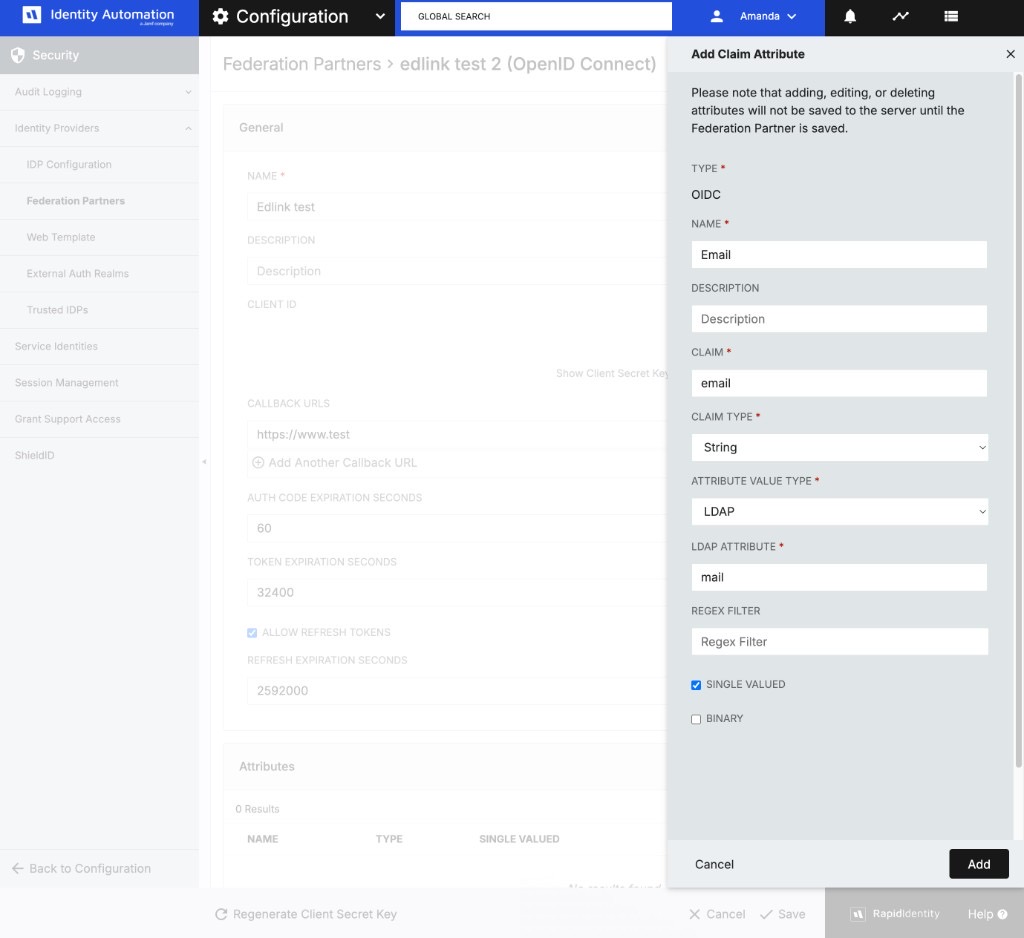
Step 4: Send Email as an Attribute
- Collapse the
Generalsection and expandClaim Attributes. - Select
Add Claim Attribute. - Enter the following:
- NAME:
Email - CLAIM:
email - CLAIM TYPE:
String - ATTRIBUTE VALUE TYPE:
LDAP - LDAP ATTRIBUTE:
mail - Select
SINGLE VALUED
- NAME:
- Select
Add, then selectSavein the bottom right.
Step 5: Validate Your Configuration
Back in Edlink, select Validate Configuration. When validation succeeds, select Finish.
Well Done!
You're now finished. People can sign in to the application with RapidIdentity. Roster data still comes from the integration's existing data source.
Any Questions?
If you still have questions, please contact our support team and we'll get back to you within 24 business hours.