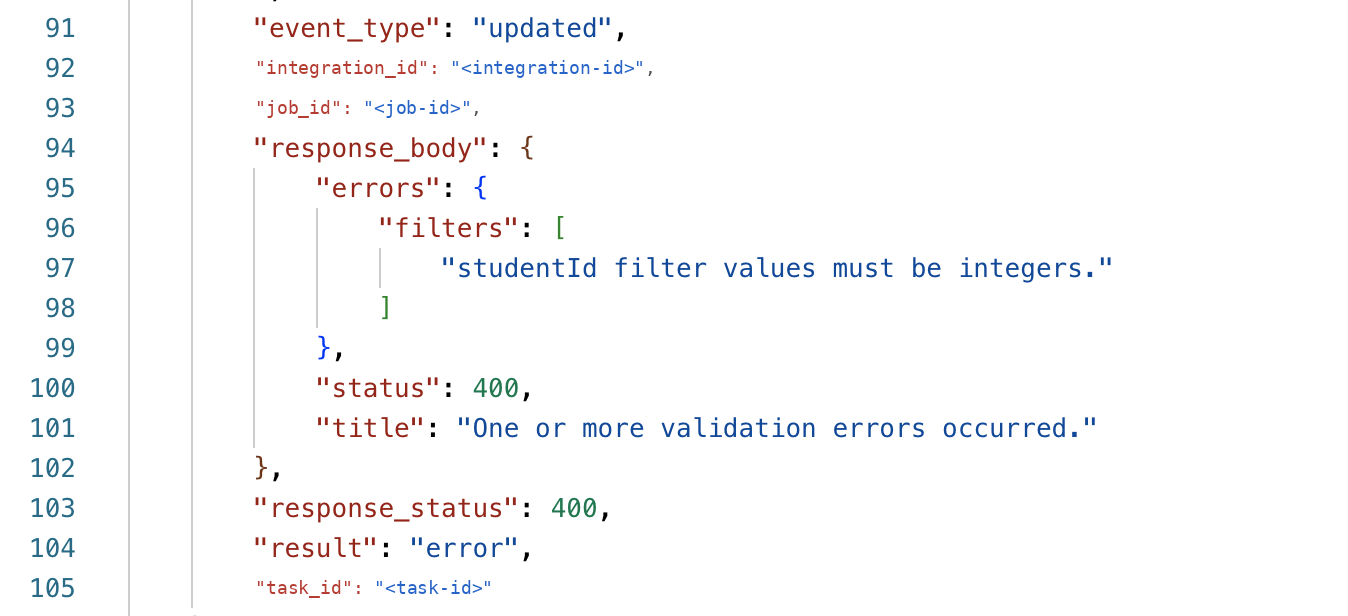
Use your team's Activity page to find failed tasks for an integration and inspect the raw provider response.
Activity can be more useful than the Jobs UI when you need the provider response that caused a task to fail.
Before you start
- You need access to the developer team that owns the integration.
- Have the integration id ready (paste the full id into the filter).
Steps
1. Open Activity
- Log into the Edlink Dashboard.
- Select your developer team.
- Open Activity in the team sidebar.
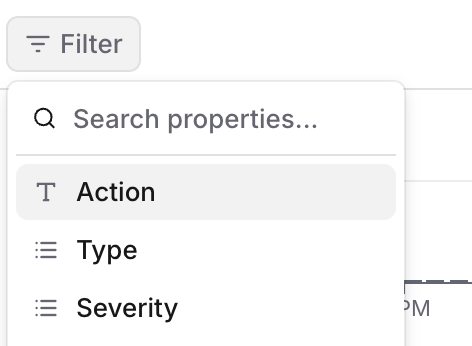
2. Filter by Action
Click Filter, then choose Action.
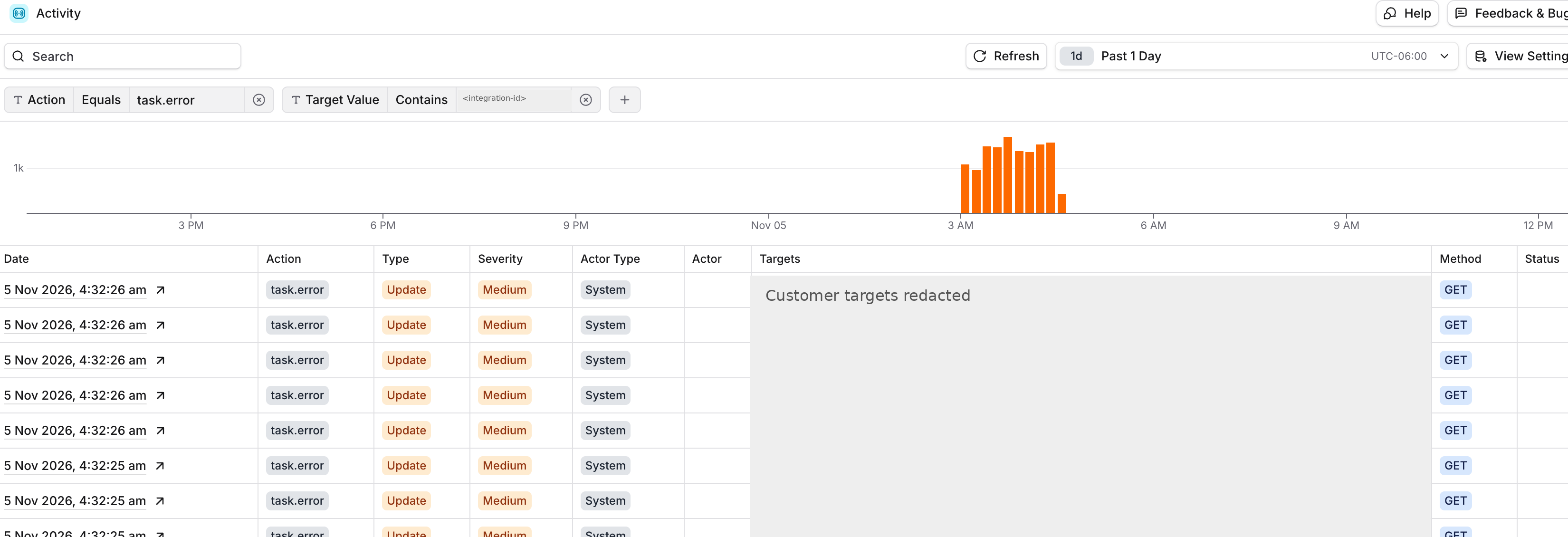
3. Set Action Equals task.error
Set the filter to Action / Equals / task.error.

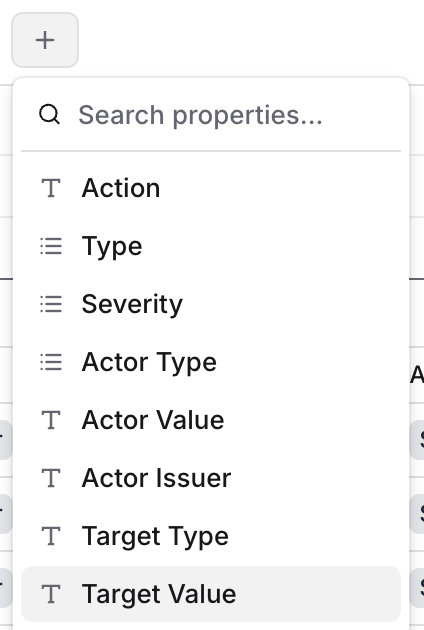
4. Add a Target Value filter
Click the + button and select Target Value.
5. Filter by your integration id
Set the second filter to Target Value / Contains, then paste your integration id.

6. Open a failing task from the Date column
With both filters applied, click a date in the Date column on a task.error row to open it.
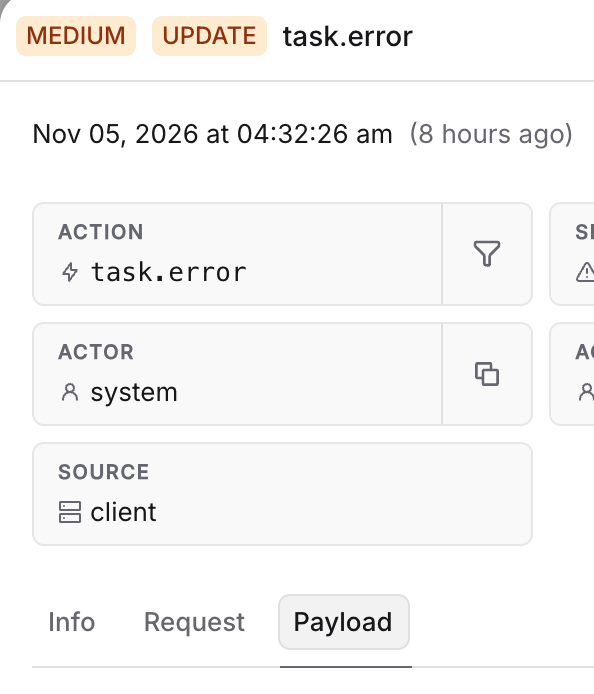
7. Open the Payload tab
In the detail pane, select Payload.
8. Inspect response_body
Scroll to the bottom of the JSON payload. The response_body field is the raw response returned by the provider on the request that caused the task to fail.