
Configuring Your Edlink Application in Wonde
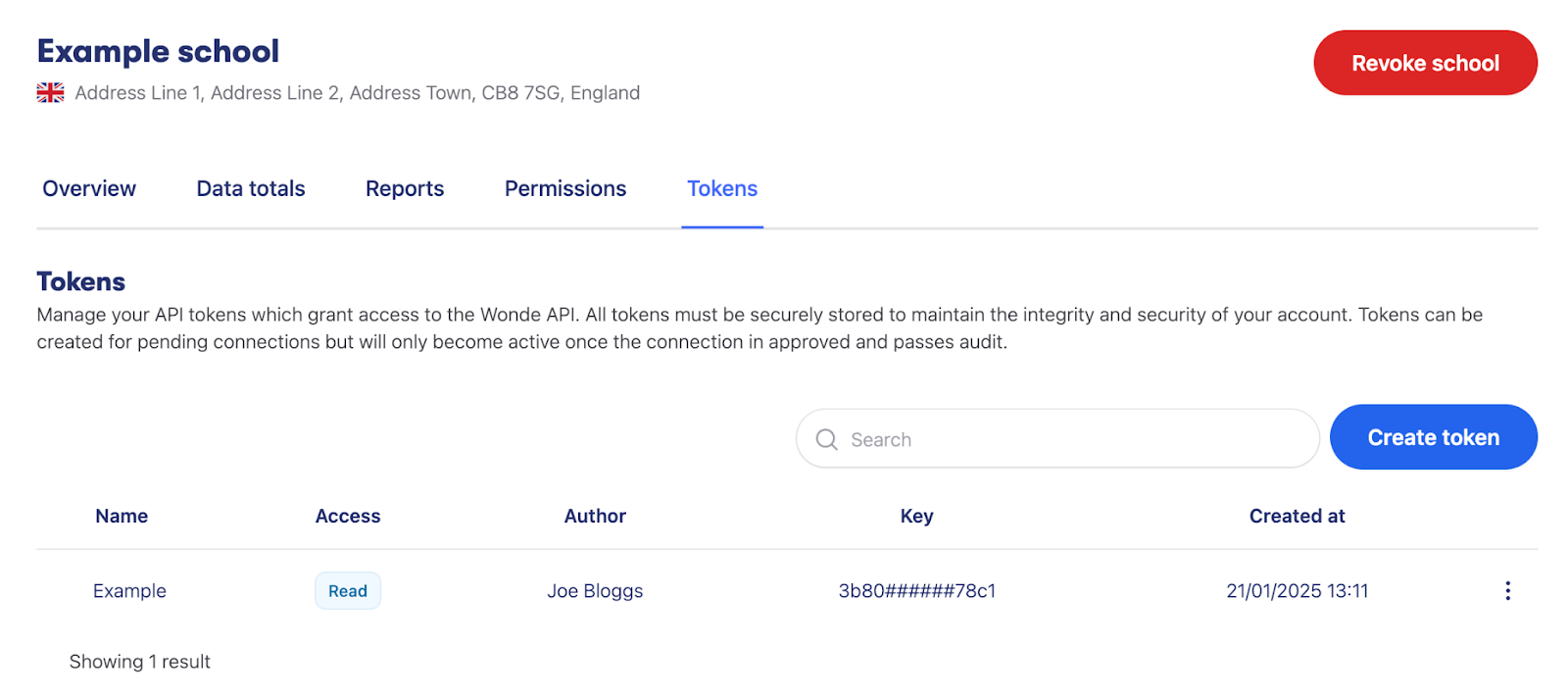
- Go to your Wonde Application Settings page and open the Tokens section.
- Create a new API Token and copy it — you’ll need this later.
Configuring Wonde in Edlink
- In the Wonde Application Settings → Tokens page, copy your API Token.
- In Edlink, open your application and select Data Providers from the left-hand menu.
- Find Wonde and click Settings.
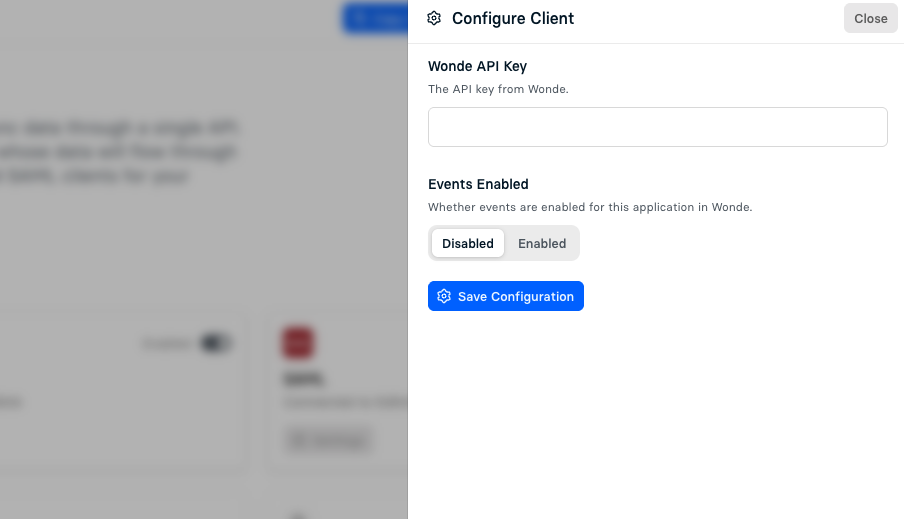
- Enter the following values:
- Wonde API Key — required
Found in the Wonde Tokens page. - Events Enabled — disabled by default
Real-time webhooks sent by Wonde when school data changes.
- Wonde API Key — required
- Save your configuration and enable Wonde from the list of data providers.
You may need to have your application approved in Wonde before your application becomes available.
To request access or support, please contact the Wonde team here.