
There are a few reasons why a sync may be failing, but the most common is that your source is not configured properly.
Try Manually Running Another Sync
It may be worth running another sync to see if the error persists.
Check Your Source is Validating Properly
Step 1
Go to ed.link and log into your dashboard.
Step 2
Go to Sources in the sidebar.

Click on your source, then go to Settings. You'll see a page that looks like this:
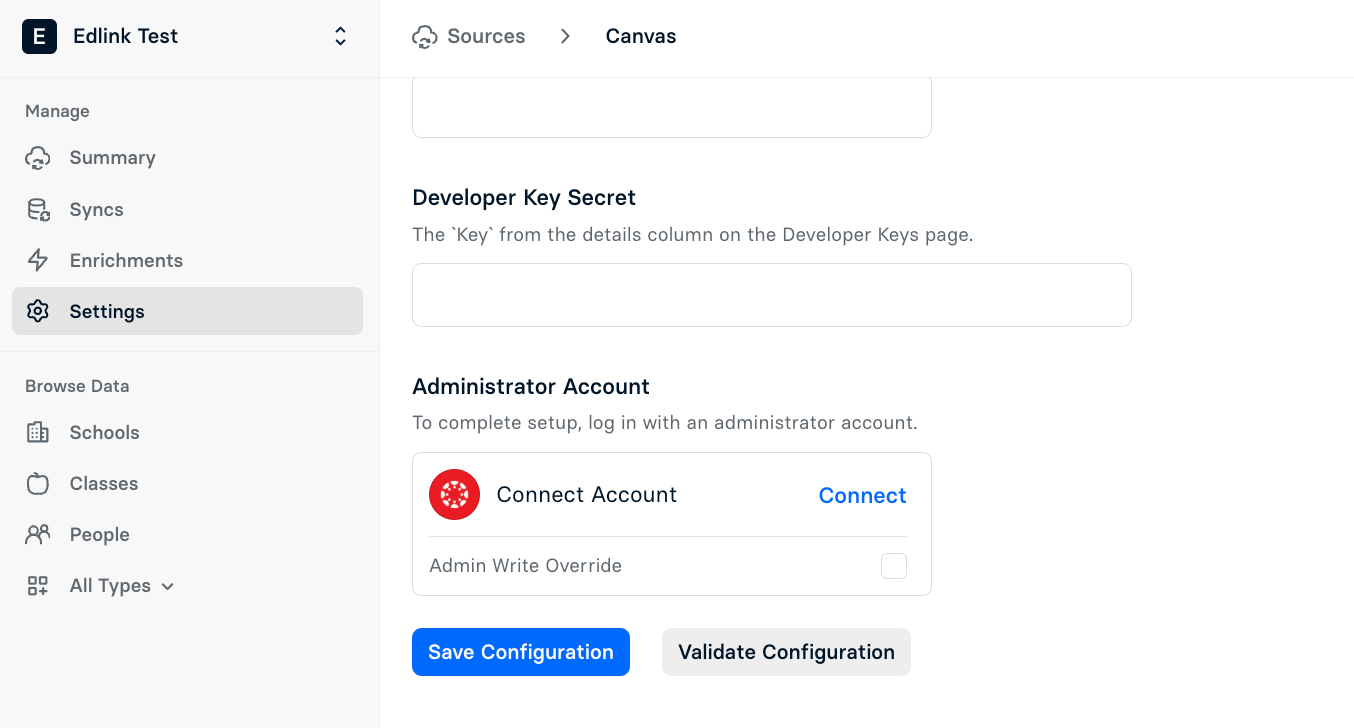
Click the Validate Configuration button. If your integration is set up correctly, you’ll see a list of items with green checkmarks.
If your source is configured incorrectly, you’ll see one or more red checkmarks.
Verify the Integration Plugin is Enabled
For sources that require an installed plugin or application (such as PowerSchool, Moodle, or Canvas), verify that the integration is active and enabled within the source system itself.
It is common for plugins to be automatically disabled during system updates or maintenance windows. If the plugin is disabled in your LMS or SIS, Edlink will be unable to connect.
- PowerSchool: Navigate to the Plugin Configuration dashboard and ensure the checkbox next to the Edlink plugin is selected.
- Moodle/Canvas: Check the external tools or developer keys settings to ensure the Edlink integration hasn't been disabled or expired.
Reconnect Your Admin Account (If Applicable)
Some sources, such as Google or Schoology, require an admin account to be connected. Reconnecting your admin account is the most common fix for getting a source to sync properly again.
After reconnecting the account, ensure you click the Save Configuration button at the bottom of the page. Failure to save the configuration will result in the connection remaining broken.
Verify All Fields Have Correct Values
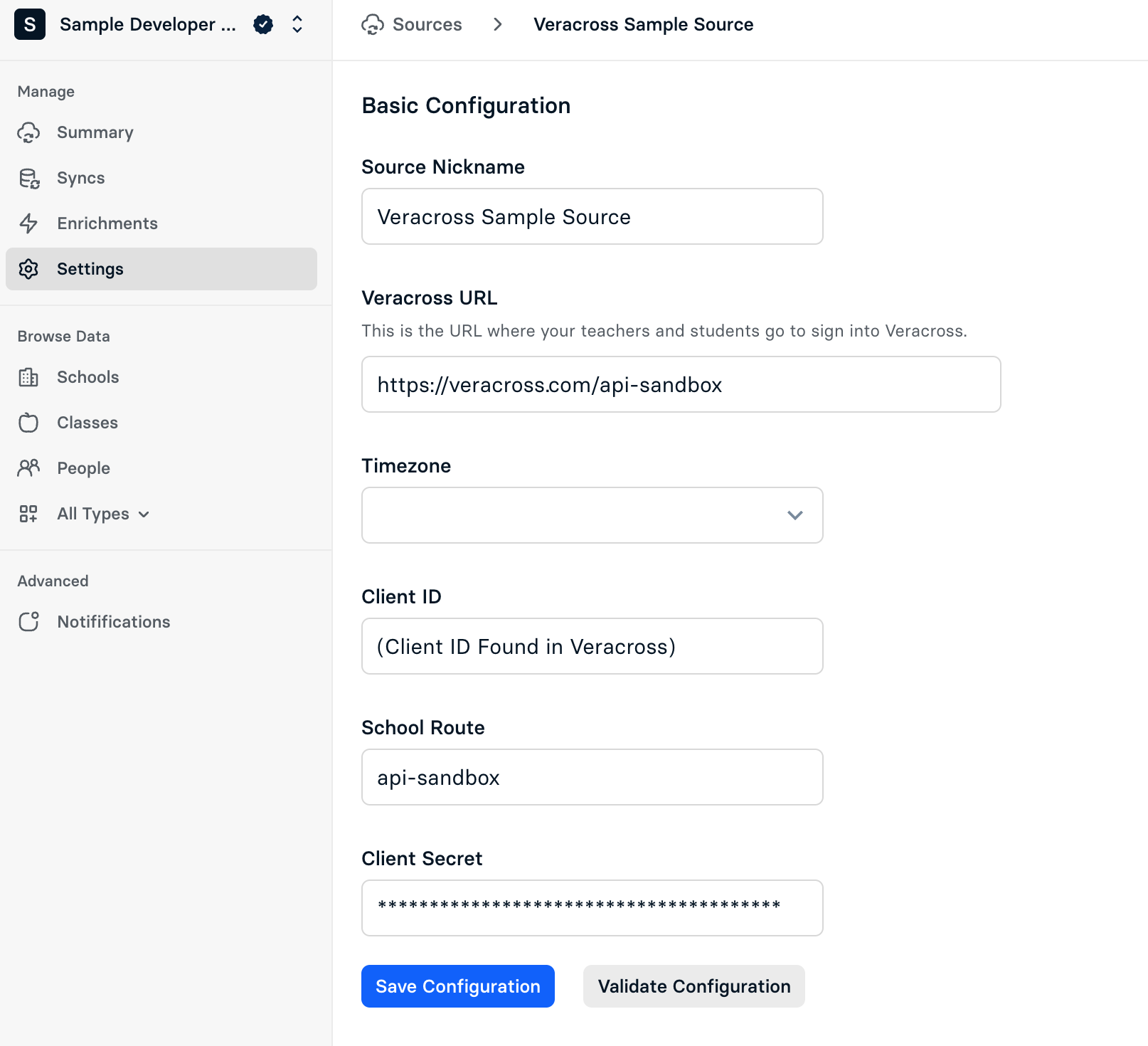
Double check that fields such as Client ID and Client Secret are filled out and contain accurate values.
Checks for File-Based Sources (CSV/SFTP)
If you use a file-based source, such as a CSV upload or an SFTP connection, ensure that your source files have not changed since the initial configuration.
For these sources to sync successfully, the file name and the header columns within the file must remain identical to the initial configuration. If you have renamed your file or changed the column headers, the sync will fail.
If you need to change the file name or structure, you will likely need to set up a new integration configuration.
Missing People Data After Successful Sync (CSV/SFTP)
If your sync finishes with a Success or Complete status but People (students, teachers, staff) are missing from Edlink, the issue is likely within the file content or mapping configuration.
1. Check for Unique Identifiers
Open your users.csv file (or the file responsible for roster data). Verify that there is a column containing a unique identifier for every user. Common headers include sourcedId, external_id, sis_id, or sometimes email.
Edlink requires a unique ID to process each person record. If this column is missing or empty for rows, those records will be skipped.
2. Verify Field Mapping Configuration
If your file has a unique ID column, you must ensure Edlink is configured to use it.
- Navigate to your source's Settings tab.
- Select CSV Mapping (or the relevant file configuration section).
- Review the mapping rules for the Person entity.
- Confirm that the ID property is mapped to a column that actually exists in your file.
Example: If your file does not have a sourcedId column but you wish to use the email column as the unique identifier, you must update the mapping to use email as the ID. If the mapping points to a column that doesn't exist, the data will not populate.
Still Need Help?
If you're still running into issues, please contact our support team and we’ll get back to you within 24 business hours.