
What are Sharing Rules?
Sharing Rules serve as the primary mechanism for controlling the scope of data shared through an Edlink integration. They are the essential tool for data minimization and ensuring privacy compliance.
A common misconception is that connecting an integration (e.g., connecting Canvas or PowerSchool to an application) automatically grants that application access to the entire district's roster (e.g., all 5,000+ students). While the integration establishes the capability to exchange data, Sharing Rules act as the gatekeepers that define exactly who and what is accessible.
Administrators should use Sharing Rules to:
- Limit Data Scope: Restrict application access to specific populations, such as a single pilot class, a specific grade level, or a particular school building.
- Protect Student Privacy: Ensure that data is not exposed for students who are not actively using the application.
- Maintain Compliance: Adhere to district data policies by strictly defining the authorized dataset.
Without configuring Sharing Rules to limit the scope, an integration may default to sharing the entire dataset or nothing at all. Defining these rules is a critical step in the setup process to ensure only the necessary data is shared.
Here's a summary of the process for creating sharing rules in Edlink.
- Go to the Edlink Dashboard
- Select the integration you want to configure
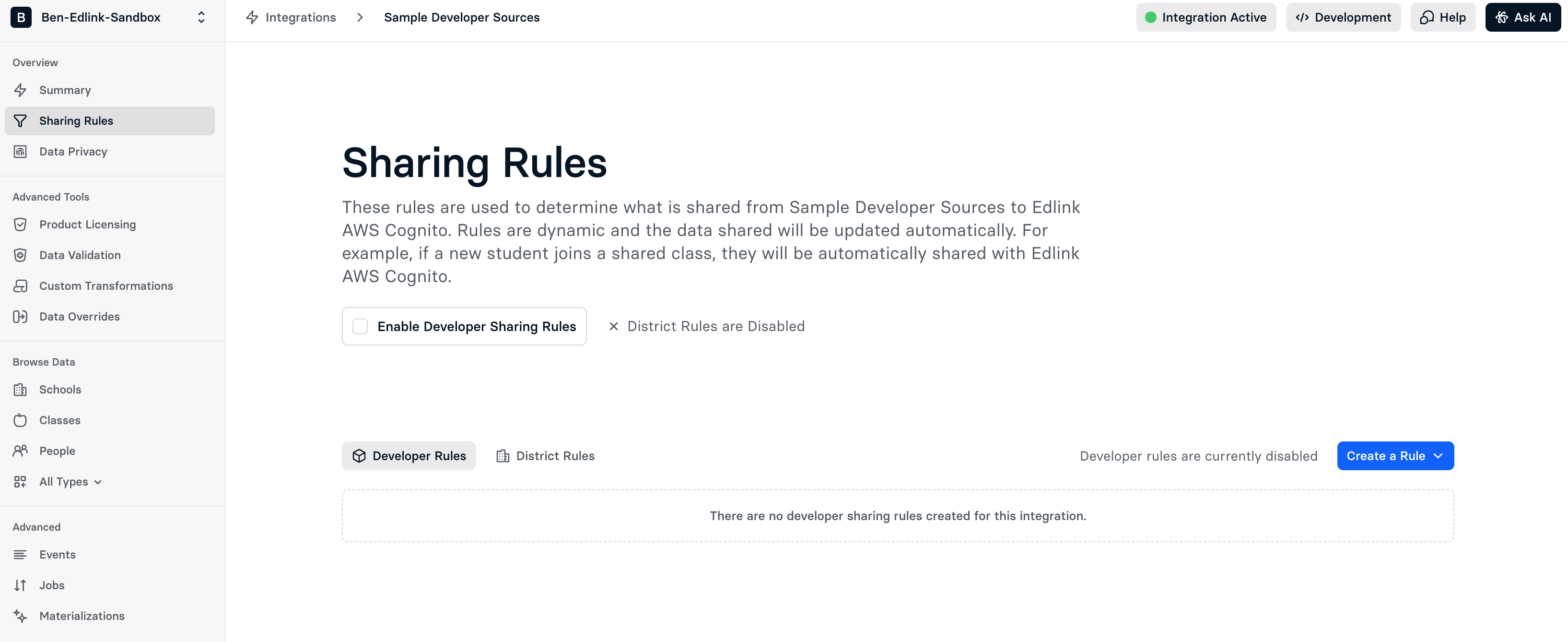
- Click Sharing Rules in the upper-left corner
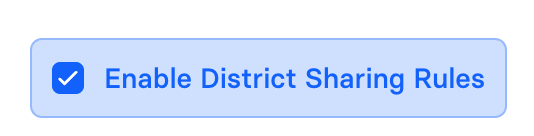
Remember to click Save Changes after adding or editing a sharing rule and check the box labeled Enable District Rules (or Enable Developer Rules for developers) to activate your rules. If this box is not selected, your rules will not be applied.

Click Create a Rule, then choose which type of sharing rule you want to create.
Share by Class
Sharing by class allows you to include an entire class using methods like the class name or the teacher's email. This is the most common type of sharing rule used.
Watch this video to learn how to set it up.
Share by Person
This rule allows you to include or exclude users based on specific attributes or by selecting them individually. Instead of manually selecting users one by one, you can define rules based on attributes such as Email Address.
For example, you can use operators like "ends with" or "contains" to bulk-filter users by domain (e.g., include all users where Email Address ends with @district.edu).
If the person is a teacher, you can also choose to share all their associated enrollments.
Watch this video to learn more.
Share by School
This allows you to include or exclude an entire school — helpful if you want to exclude everyone from a particular building, for example.
Troubleshooting
Missing Data
If you find that specific data (such as certain schools, classes, or people) is missing from your integration, it is often caused by restrictive Sharing Rules.
District administrators may have configured rules that exclude the entities you expect to see. To resolve this issue:
- Ask the district administrator to review their Sharing Rules settings in the Edlink Dashboard.
- Request that they update the rules to explicitly include the missing schools, classes, or individuals.
- Remind them to click Save Changes after modifying any rules for the updates to apply to the data sync.
Single Sign-On (SSO) Errors
If a user attempts to authenticate via SSO (such as an administrator testing an LTI launch link) but is not included in the Sharing Rules, they will receive a 400 error during login stating they are "masked by a sharing rule" or PERSON_NOT_SHARED.
This frequently happens when administrators configure sharing rules for a specific pilot class but forget to include their own account. To successfully launch and test the application, administrators must ensure their own account or test account is included in the sharing rules (for example, by enrolling their test account in the shared pilot class, or explicitly sharing their user account).