
If you need to manually sync your source with Edlink to push roster data to Edlink or the learning application before the automatic sync, you can initiate a manual sync. To do this, go to your District Team in the Edlink Dashboard, select your source in Sources, click Syncs in the left column, and then click Run Sync in the top right-hand corner of your screen.
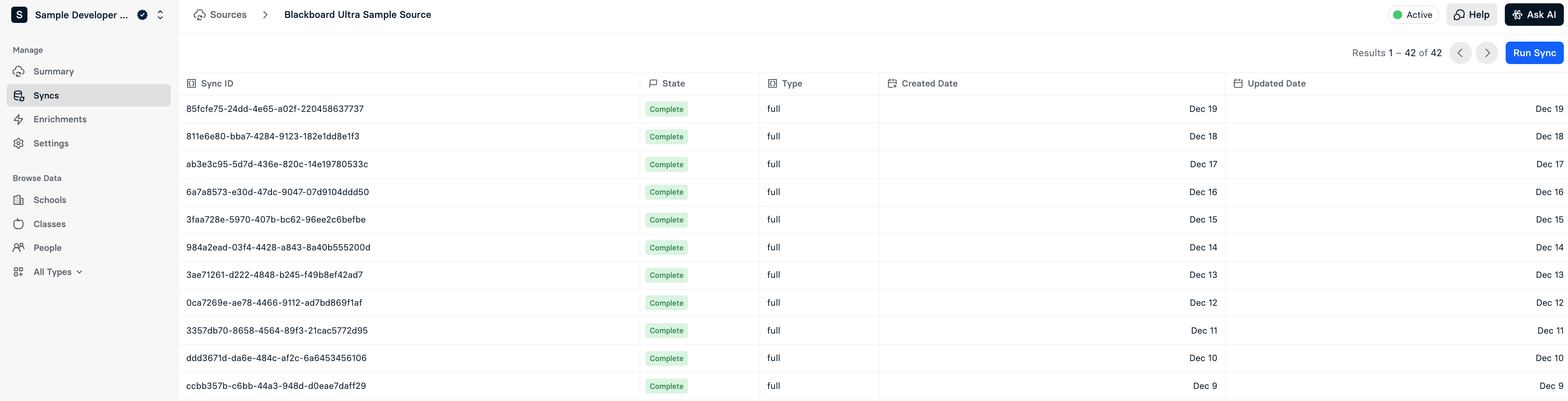
Note: In most cases, it takes 15–20 minutes for the sync to complete. Even after the sync status shows as "Complete" in the dashboard, there may be a slight delay while data materialization occurs and data propagates to the connected learning application. If you do not see the new data immediately after the sync finishes, please wait a few minutes for this process to finalize.
Troubleshooting with Manual Syncs
Initiating a manual sync is a common resolution step for access issues. For example, users might encounter errors like CLASS_NOT_SHARED when attempting to access a resource. This error typically occurs when a class is new or upcoming in the Learning Management System (LMS) and hasn't yet propagated to Edlink's dataset via the scheduled nightly sync.
By running a manual sync, you force Edlink to retrieve the latest data from the source system immediately. This ensures that any new classes, enrollments, or roster changes are recognized, resolving errors caused by out-of-date data.