
Sometimes, you may notice that syncs are not completing in Edlink after making significant changes in your source. This is usually because the sync has been placed in a pending state. This safeguard ensures that roster data is not accidentally removed due to mistakes in the source or configuration errors.
This state is commonly triggered by mass deletions or other large-scale changes. For instance, if you delete a significant portion of your data (e.g., removing "all but one" course from a term), Edlink will halt the sync to allow you to verify that this action was intentional.
To review a pending sync, go to your District Team in the Edlink Dashboard. Select your source, then click Syncs in the left-hand column. Locate your most recent sync, which will be marked as pending, and select it.
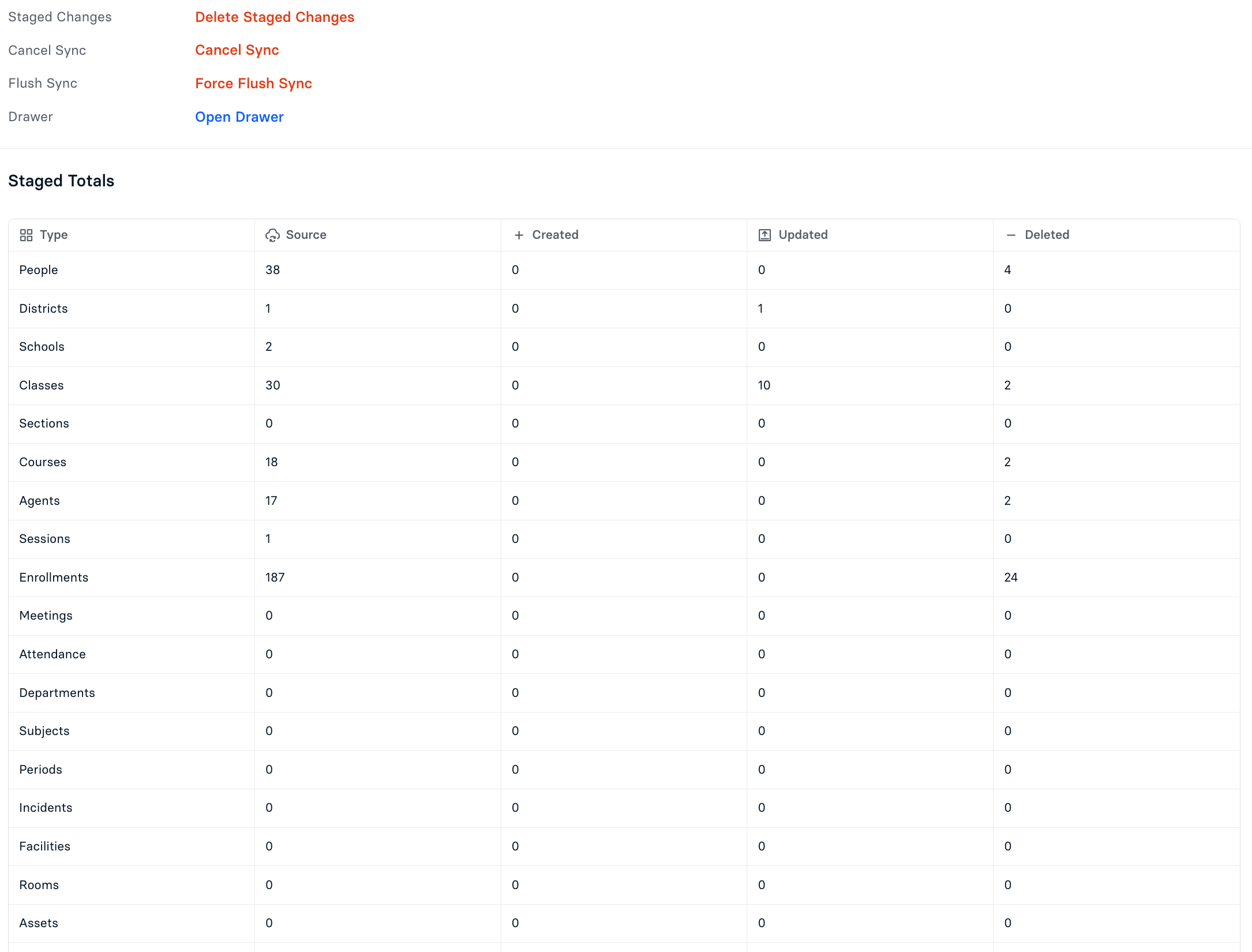
You will see a Staged Totals data table showing the most recent changes to your source. Review these changes carefully.
Note for SFTP and CSV Sources: If you see a large number of unexpected deletions (e.g., all students being removed), this is often caused by a mismatch in your file column headers. For example, if a header changes from Identifier to identifier (case sensitivity matters) or User ID to UserID, Edlink may fail to map the data correctly. Please double-check that your file headers exactly match the mappings in your source configuration.
- If the changes look correct, click Force Flush Sync to complete the sync.
- If the changes do not look correct, click Cancel Sync to stop the process. You can then fix the issue in the source or reach out to Edlink Support for assistance.